

FlowDiagram
FlowDiagram diagrams genuinely relational content - flows, dependencies, fan-outs - as staged columns read left to right.
Small-caps stage headers name what each column holds, and content-sized cards carry a bold label with an optional monospace identifier, status badge, and short body.
Cards stay intrinsically sized for short content and wrap long labels, identifiers, URLs, and body text within a readable bound.
Every connector touches its cards with an arrowhead pointing subject-to-object of its verb.
When one node feeds several, the diagram draws an explicit branching fork rather than a lone arrow beside a stack.
How it looks
Section titled “How it looks”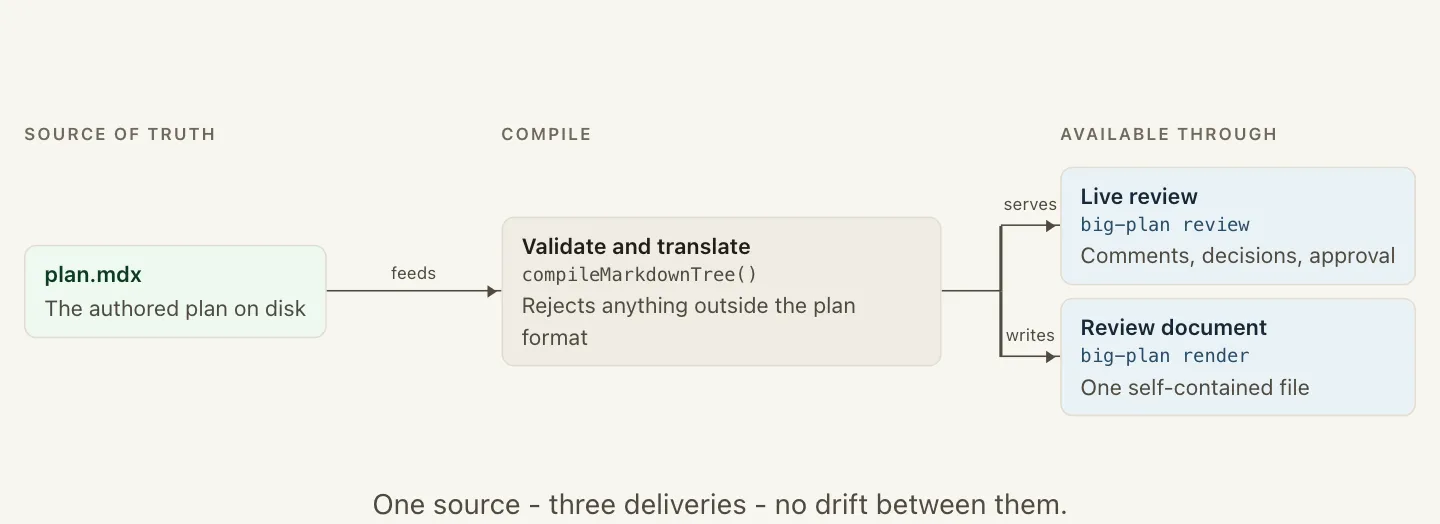
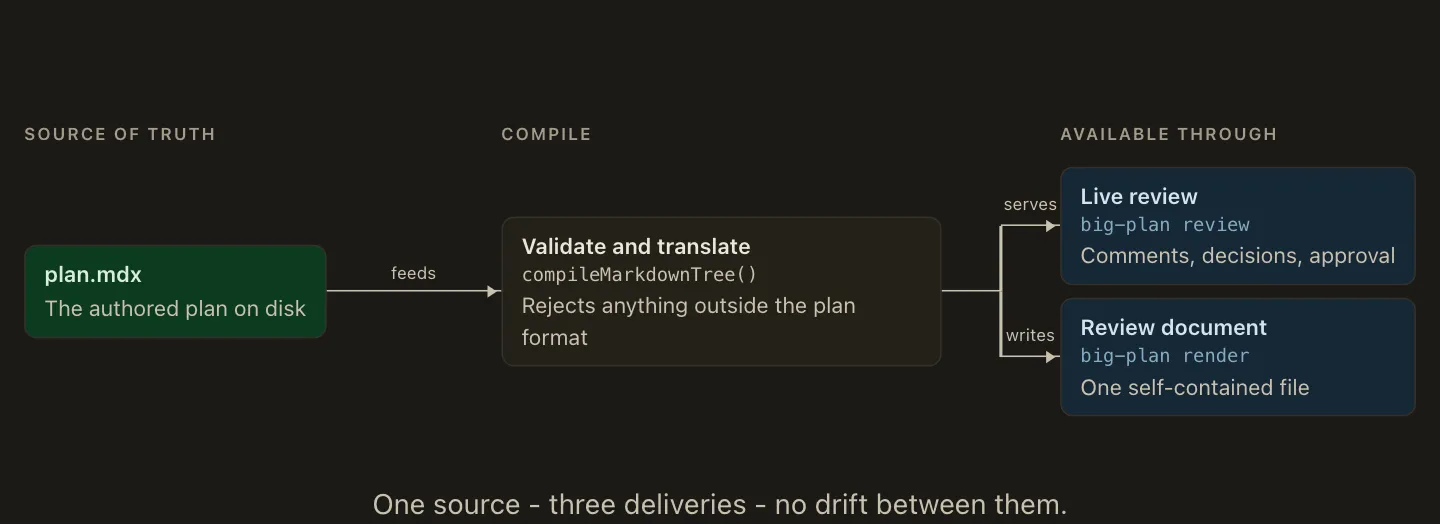
When to use it
Section titled “When to use it”Reach for FlowDiagram when the point is a relationship: how an artifact travels, what depends on what, where one source fans out.
A list of parallel claims is bullets, not a diagram.
When not to use it
Section titled “When not to use it”Do not use it for a list of claims dressed as boxes. If the arrows would not say anything, the content is a list. Do not use it for a general graph, a sequence, or a state machine either.
Compared with
Section titled “Compared with”MermaidDiagram— reach for it for a general graph beyond a staged left-to-right story, or for a sequence, class, state, entity-relationship, schedule, journey, pie, mindmap, timeline, or git view.
Authoring
Section titled “Authoring”<FlowDiagram>
<Stage title="Source of truth"><Node id="authored" label="Author once" code="assets/skill/SKILL.md" tone="source" /></Stage>
<Stage title="Available through"><Node id="cli" label="CLI" code="big-plan skill" tone="destination" /><Node id="docs" label="Docs" tone="destination">
The site republishes the same file
</Node></Stage>
<Edge from="authored" to="cli" label="feeds" /><Edge from="authored" to="docs" label="feeds" />
One authored file - no content drift.
</FlowDiagram>The contract
Section titled “The contract”- At least two
Stagechildren, each with a required non-emptytitle, an optional uniqueid, and at least oneNode. Noderequires a uniqueidand alabel;codeis an optional monospace identifier line,badgean optional status pill withbadgeToneneutralorwarning, andtoneissource,neutral(default), ordestination.- A
Nodebody is at most one short paragraph: the relationship explained at the point of connection. - Every
Edgeneedsfromandtonaming node ids in adjacent stages, read left to right;labelcarries the verb. - Only the last stage may hold more than one node, and every node after the first stage takes exactly one incoming edge, so the diagram always draws as columns with one connector or one fork between them.
- Loose content inside
FlowDiagramis at most one paragraph: the footer line rendered inside the graphic.
Each violation fails validate and render with a positional diagnostic.
Run big-plan guidance FlowDiagram for judgment-level usage guidance.
Reading and marking up a diagram
Section titled “Reading and marking up a diagram”A diagram is the widest thing a plan can hold, so a rendered document gives the reader more than a scrolling strip.
- Maximize. Every diagram carries the shared maximize control. It opens the figure over the reading column, fits the artboard to the available width - never above 100 percent - and zooms between 25 and 400 percent with toolbar buttons or a trackpad pinch. Pan with two fingers or by dragging; arrow keys move selection through the diagram. Escape or Restore requests an exit. If feedback remains, an accessible alert reports the actual pending-note count and offers
Go backorExit full screen; a completed exit clears the selection and returns focus quietly to the diagram, while going back preserves the work and prior focus. - Elements are addressable. Each stage, node, edge, and footer, plus the figure itself, carries an anchor such as
component/FlowDiagram#1/node/apply. The same strings appear in the machine-readablecompileoutput, so an agent and a reviewer name the same piece. A node keeps its anchor when its label, tone, or stage changes; a stage keeps its anchor across a reworded title only if the author gave it anid. - Comment and correct. Click an element to select it and reveal its Comment action. Type or double-click its text to suggest an edit, and press Delete to propose or reverse removal. A proposal repaints the document - a removal ghosts the element and its incident edges and says “Removed”; an edit renders the replacement on a highlight with the original still available - and never writes to the plan source. Before handoff, everything is revertible, and “Show original” hides the whole proposal layer.
- Collect and hand off. Draft feedback stays in memory and appears in that diagram’s tray while maximized.
Add to plan feedbackmoves the batch to the page-level feedback package when that collector is available; the page owns the single send, and the diagram no longer offers to undo feedback after handoff. In a standalone preview without the collector, nothing moves and the tray reports that the notes are still there. - Without scripts. The document renders every diagram in full, shows no control that cannot act, and keeps horizontal scrolling as its fallback.