

UI review
Every screenshot on this page is a real Big Plan review, running locally, captured from the current build. Nothing here is a mockup.
Prefer to poke at it yourself? Sample plans opens the same documents in your browser.
The review document
Section titled “The review document”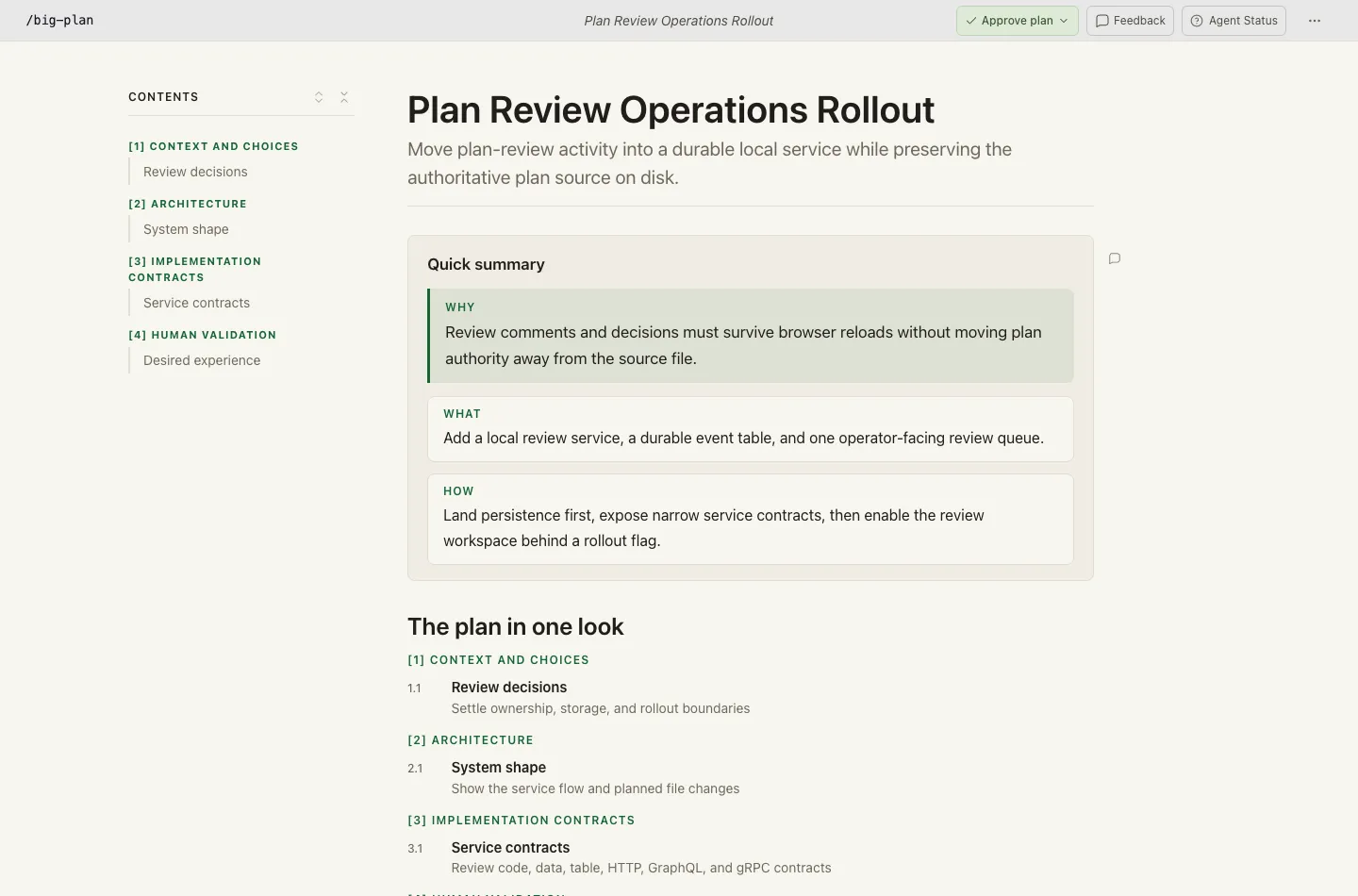
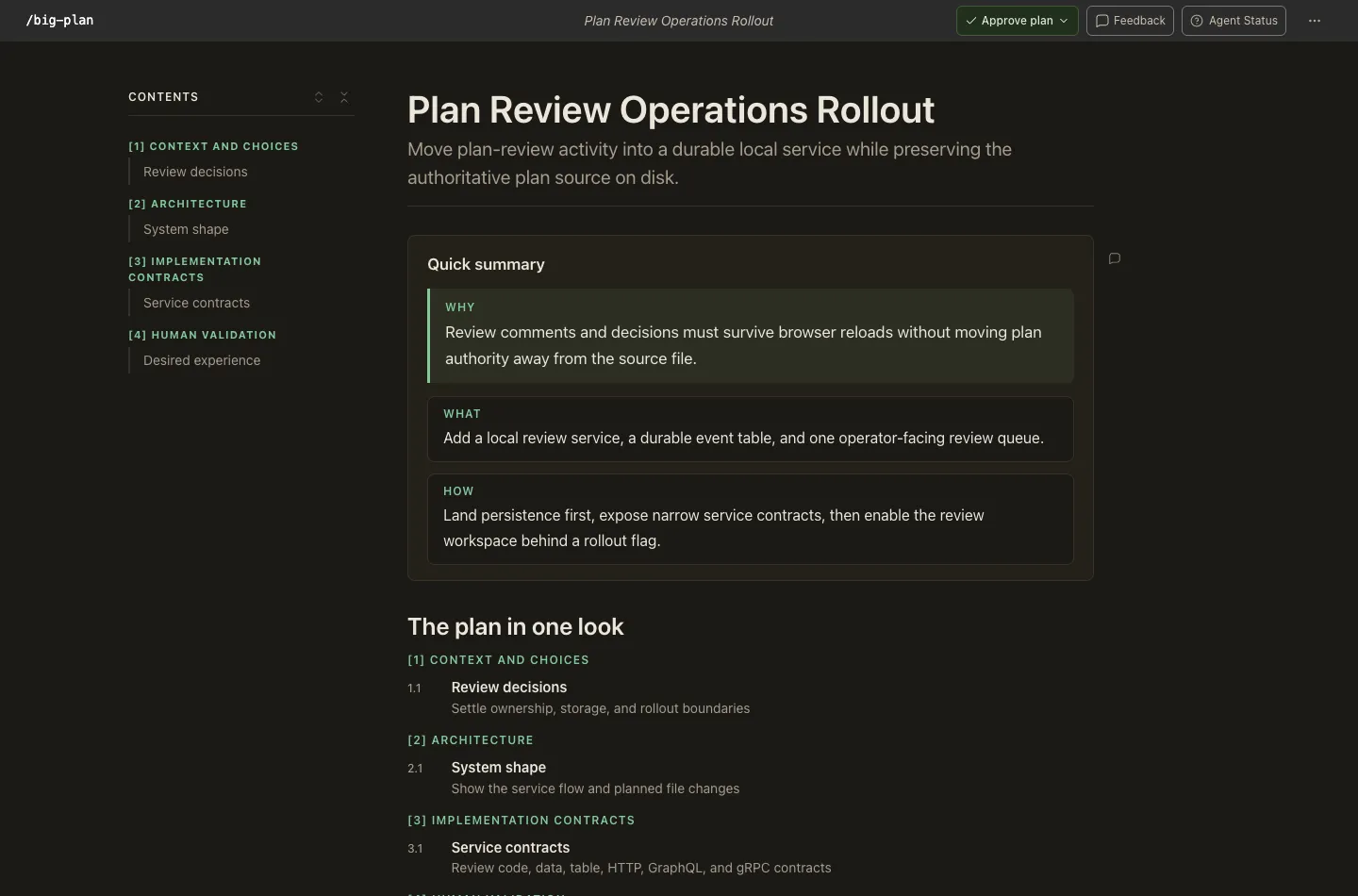
This is the whole surface. The plan reads as a document, not a transcript.
- The branding bar carries the four things you can do: Approve plan, Feedback, Agent Status, and a More actions menu with Export and Settings.
- The contents sidebar is built from the plan’s own sections, grouped under its numbered acts. It tracks where you are as you scroll, and collapses on narrow screens.
- The quick summary opens every plan: why the work matters, what changes, and how — three rungs of the same argument, capped so it stays a summary.
- The plan in one look is the table of contents, one row per section with its takeaway, so you see the whole argument before reading any of it.
Both appearances ship for every colour theme, and the choice is applied before the first paint so the other never flashes.
Leaving feedback
Section titled “Leaving feedback”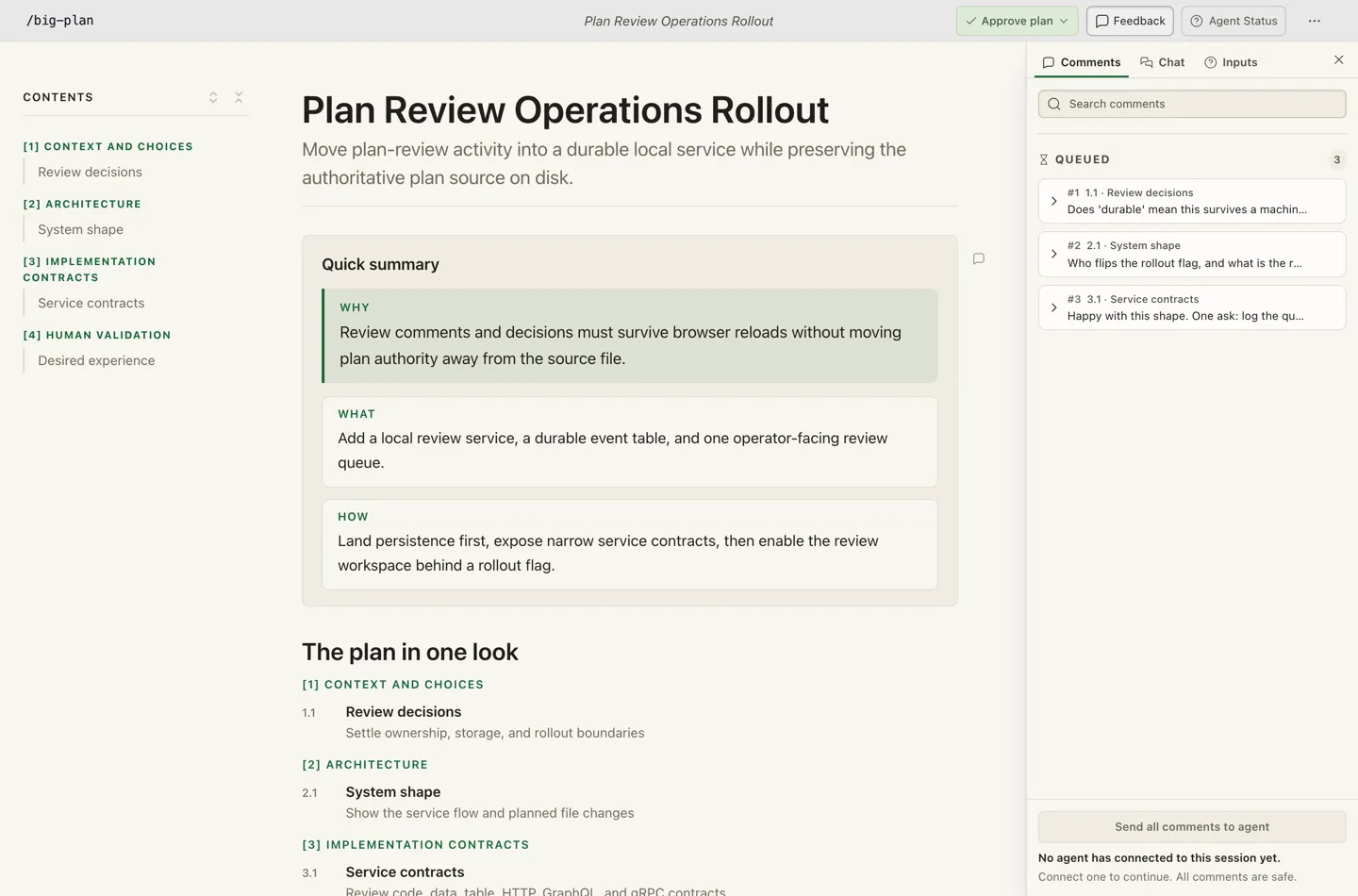
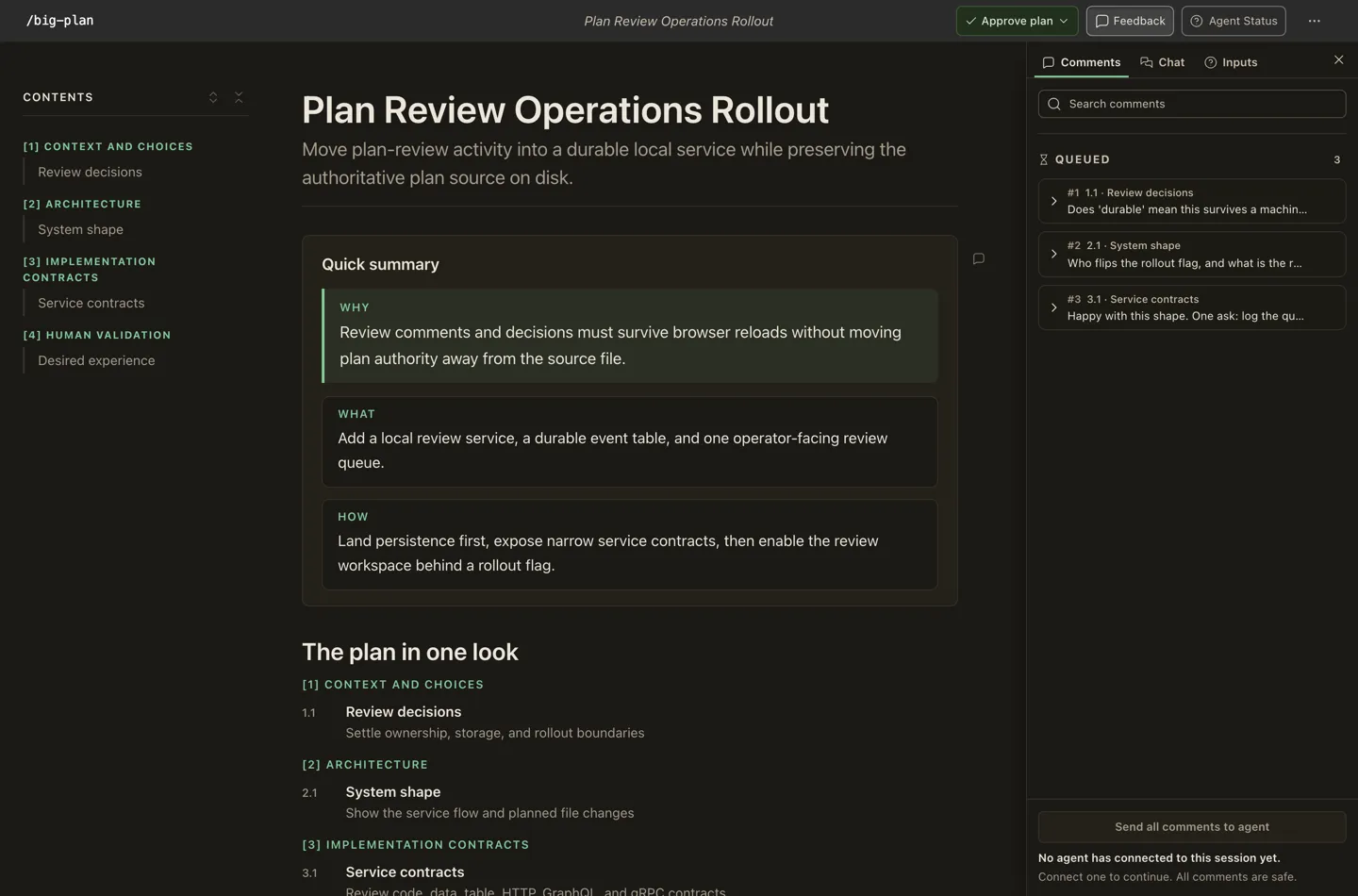
Open Feedback and the sidebar takes the right-hand column. It has three tabs:
- Comments — everything you have staged or sent, grouped by the batch it went in.
- Chat — questions about the plan as a whole, plus threads the agent opened itself.
- Inputs — what the review is still waiting on, so nothing you owe an answer to gets lost.
To comment, select any text and choose Comment, or use a slide’s own comment icon to talk about a whole section. The note is anchored to that block, so the agent knows exactly what you meant — and it stays anchored when the agent rewrites the plan around it.
Until an agent connects, a comment sits in the queue and says so. It sends itself when one arrives.
Answering the plan’s questions
Section titled “Answering the plan’s questions”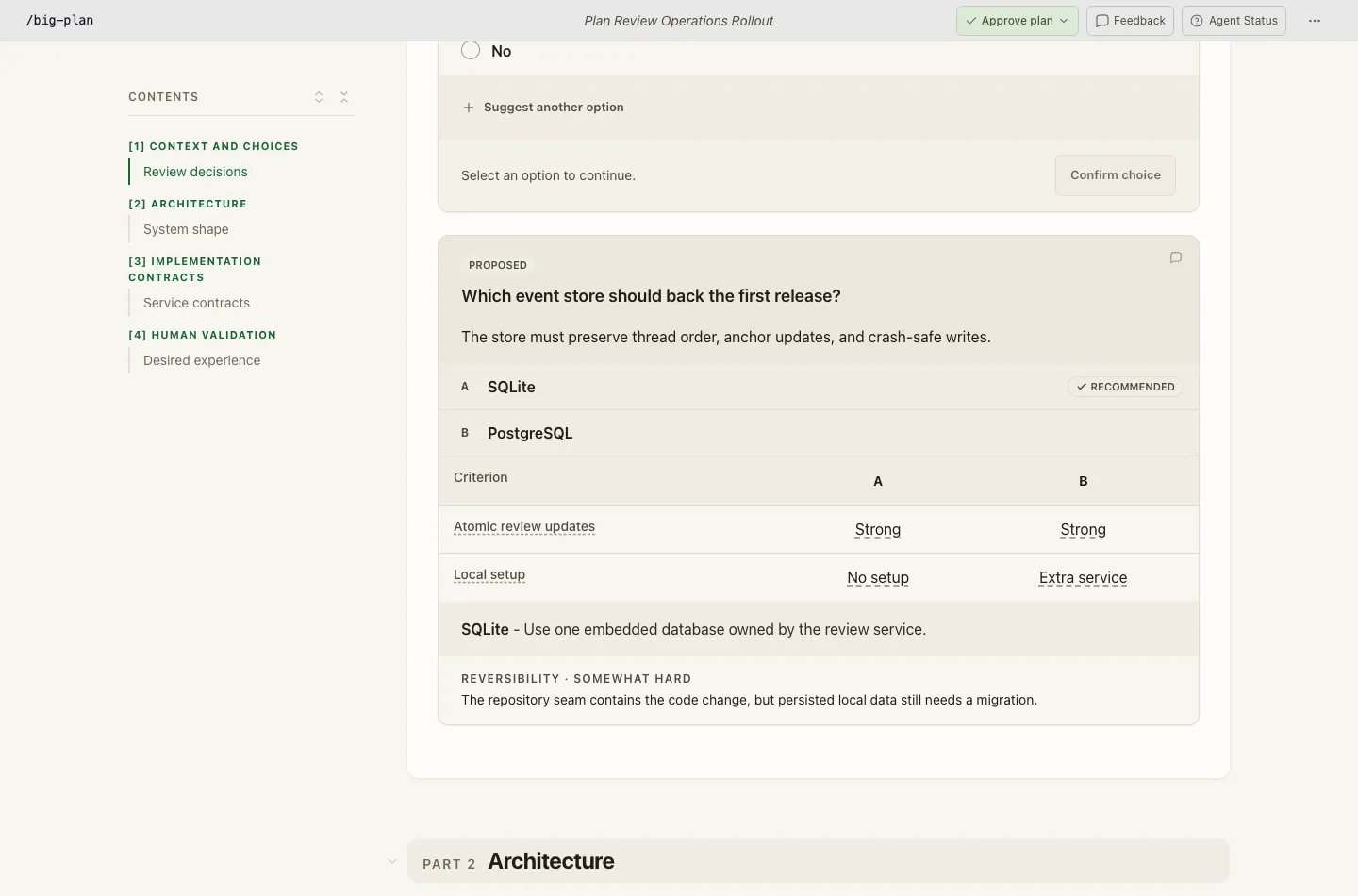
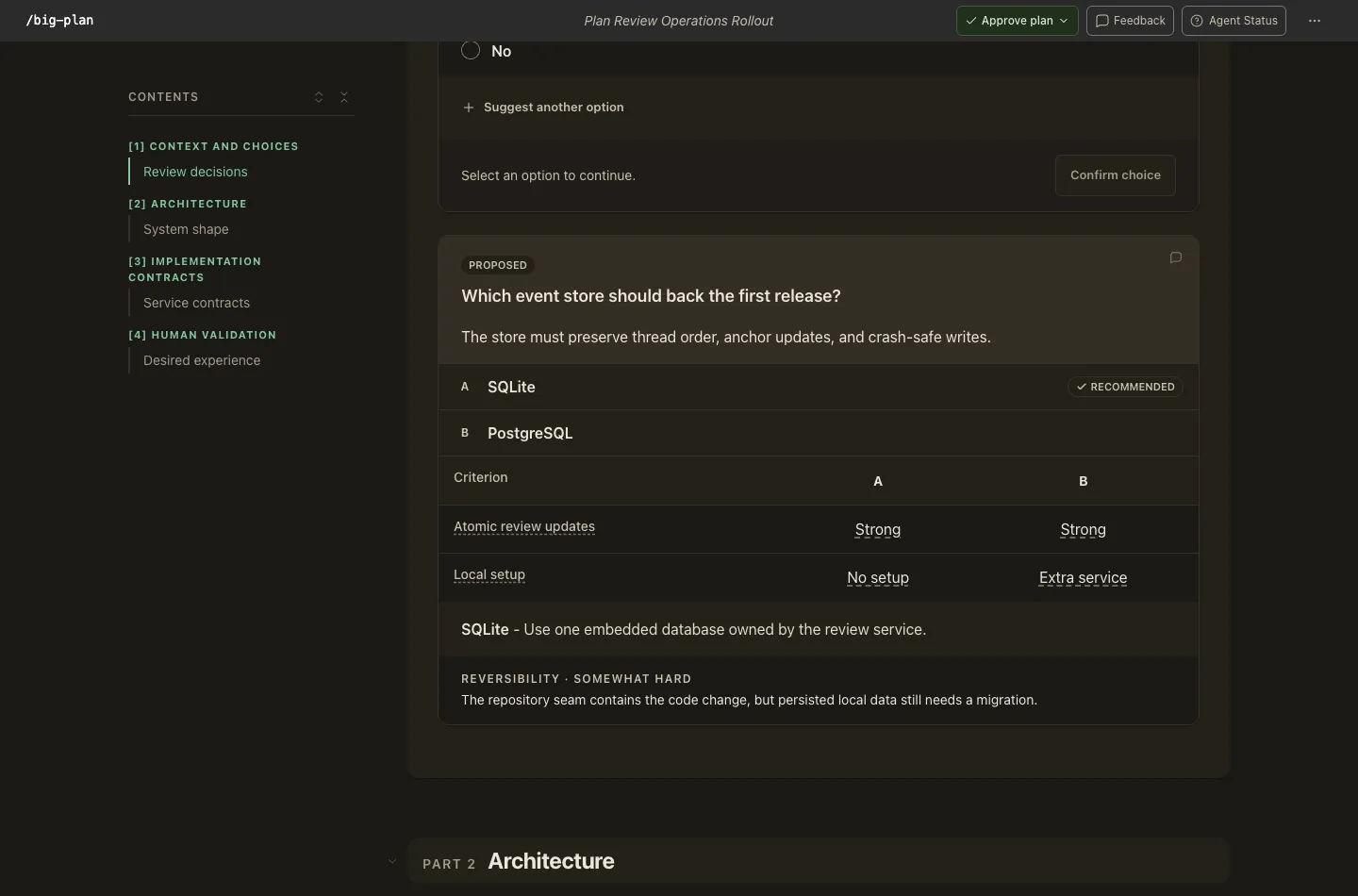
A plan can ask you things, and you answer in place rather than in a reply somewhere else.
This one is a DecisionAnalysis: two options, a criteria table comparing them, a
Recommended badge on the author’s pick, and a reversibility note saying how expensive it
would be to change course later. Every underlined word reveals its definition, so you can check
what a verdict meant before you trust it.
Simpler questions get simpler cards, and every card offers Suggest another option when neither answer is right.
Your answer is saved with the review and survives a reload. It reaches the plan file itself only when you approve.
Approving
Section titled “Approving”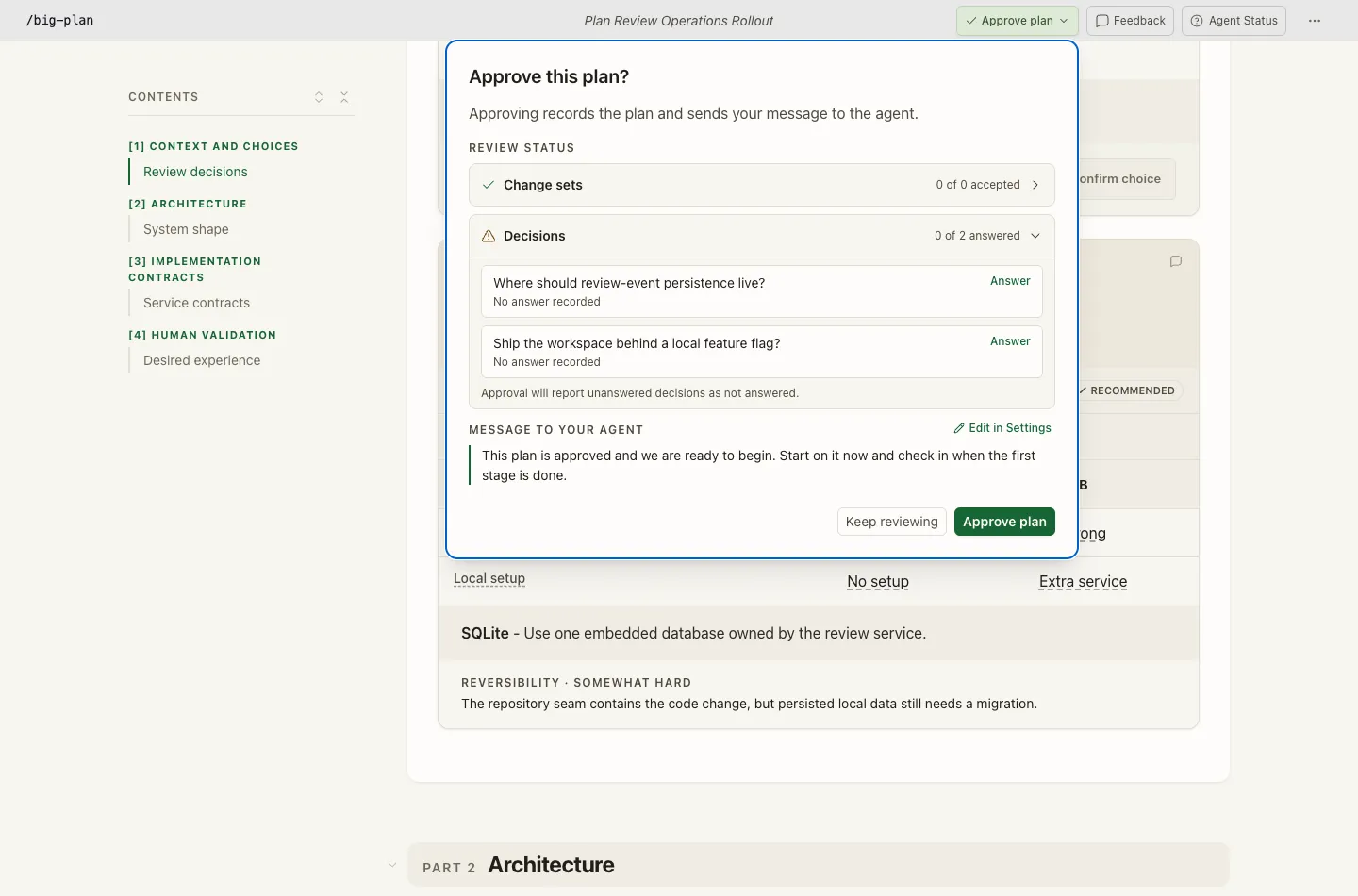
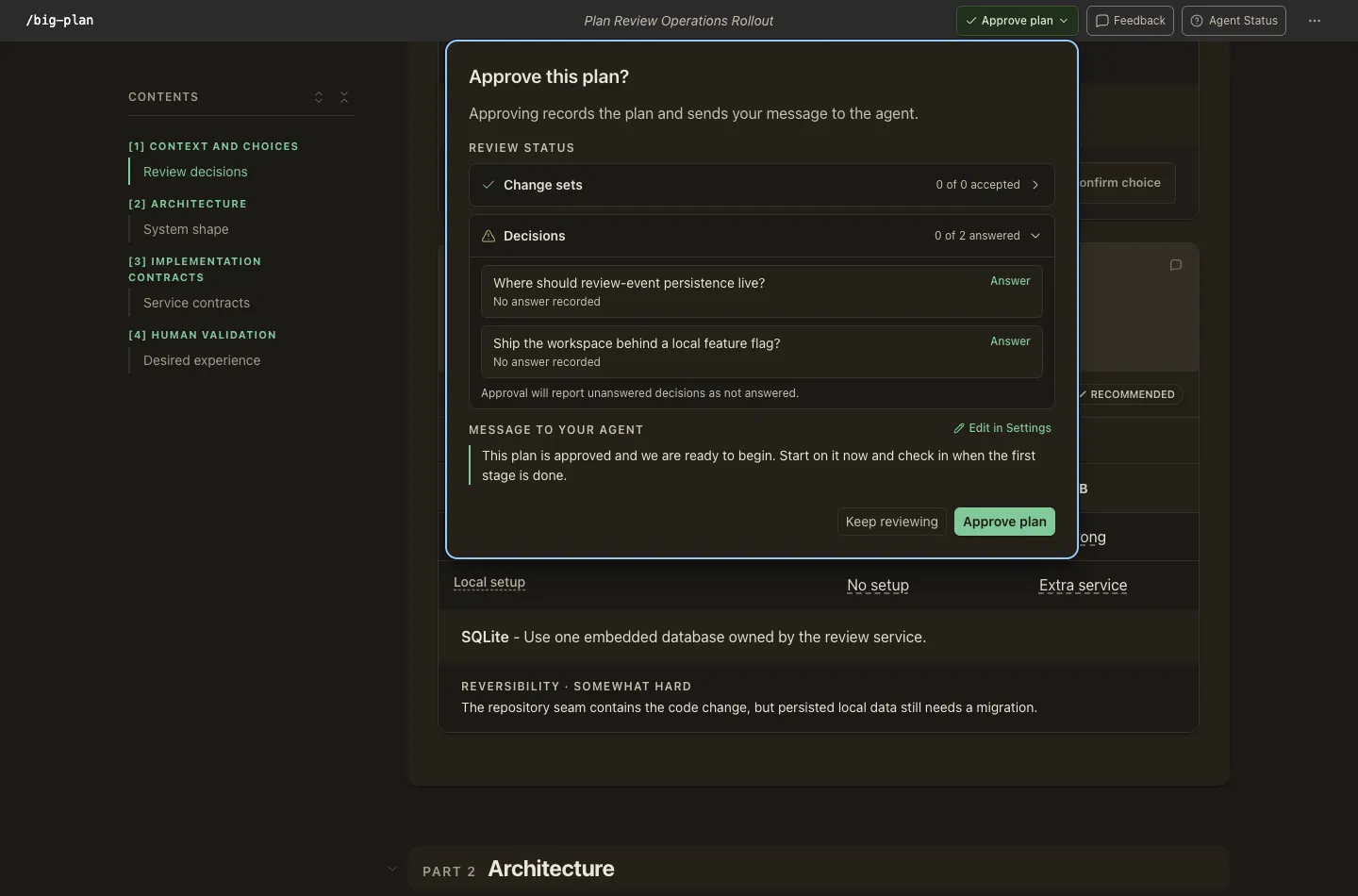
Approve plan does not just close the tab. The dialog shows you what you are signing off:
- Change sets — how many of the agent’s changes you have accepted.
- Decisions — which questions you answered and which you did not, each openable from here. Approval never picks an answer for you; unanswered stays unanswered, and it says so.
- Message to your agent — the covering note that goes with the approval, editable in Settings.
Confirming writes your answers into the plan file, records the exact version you approved, and tells the agent to start. The agent then re-reads that file and checks it is byte-for-byte the version you approved before doing anything.
Things worth trying
Section titled “Things worth trying”| In any document | What happens |
|---|---|
| Click a section in the contents | Scrolls there, expanding anything collapsed on the way |
| Hover a code block, table, or diagram | Copy and maximize controls appear; Escape returns |
| Open Settings | Appearance, five colour themes, and your approval message |
| Collapse a Part or a slide | The choice is remembered for that plan and revision |
| Disable JavaScript and reload | The plan is still completely readable |
Sample plans — complete rendered plans to read end to end.